Search
Ctrl+K
Usability
5
- Getting Started
- About Shuffle
- Tenants & Multi-Tenancy
- Features Overview
- API Reference
Automation
3
Security
4
Infrastructure
4
Configure Shuffle


On this page
Documentation for configuring Shuffle. Most information is related to onprem and hybrid versions of Shuffle.
Introduction
With Shuffle being Open Source, there is a need for a place to read about configuration. There are quite a few options, and this article aims to delve into those.
Shuffle is based on Docker and is started using docker-compose with configuration items in a .env file. .env has the configuration items to be used for default environment changes, database locations, port forwarding, github locations and more.
Installation
Check out the installation guide, however if you're on linux:
System requirements may be found further down in the Servers section.
Bash
Editable
Response
Edit .env before your first start. Set at least:
Bash
Editable
Response
Start the stack:
Bash
Editable
Response

Verify running containers:
Bash
Editable
Response
Open Shuffle in your browser:
http://<server-ip-or-dns-name>:3001https://<server-ip-or-dns-name>:3443
First login & verification
Once Shuffle is running, open it in your browser:
http://<server-ip>:3001https://<server-ip>:3443
- Set up your admin user (or log in directly if you set
SHUFFLE_DEFAULT_USERNAMEandSHUFFLE_DEFAULT_PASSWORDin.env). - Go to
/appsand make sure the default apps are loaded. If they aren't, check your network/proxy connection to GitHub. - Build a quick test workflow with a Webhook/Schedule trigger and Shuffle Tools or HTTP to verify that executions run through properly.
PS: If you're also running Shuffle Security (for Incidents, Alerts, and Case Management), open http://<server-ip>:3002. It connects to the exact same backend and shares your login credentials.
Useful Docker commands
Bash
Editable
Response
Self-hosting Shuffle Security
Shuffle Security is the SOC and incident response frontend for Shuffle. It connects directly to your existing shuffle-backend over the Docker network on port 3002 (HTTP) and 3444 (HTTPS).
To add Shuffle Security to your existing docker-compose.yml:
YAML
Editable
Response
Then pull and start the container:
Bash
Editable
Response
Once running, access Shuffle Security at http://<server-ip>:3002. It uses the exact same backend API, user credentials, tenants, and OpenSearch database as Shuffle Core (:3001).
PS: If you want to deploy the standalone Shuffle Security repository directly:
Bash
Editable
Response
Updating Shuffle
From version v1.1 onwards, we are using ghcr.io/shuffle/* registry instead of ghcr.io/frikky/*
As long as you use Docker, updating Shuffle is straight forward. To use a specific version of Shuffle, check out specific version. We recommend always sticking to the latest tag, and if you want experimental changes, use the nightly tag. You may however in specific cases want to use a static tag, such as 2.1.1
While being in the main repository, here is how to update Shuffle:
Code
Editable
Response
Please note: We will no longer provide support for older versions after January 31, 2026. To ensure uninterrupted access and the best possible experience, please upgrade to Shuffle v2.1.1.
Versions v2.1.1+ include strict, enforced limitations. We are now actively enforcing the differences between the Open Source (OSS) and Enterprise editions, differences that have always existed but were not previously enforced.
PS: This will NOT update your apps, meaning they may be outdated. To update your apps, go to /apps and click both buttons in the top right corner (reload apps locally & Download from Github)
Specific Versioning
To use a specific version of Shuffle, you'll need to manually edit the Docker-Compose.yml file to reflect the version - usually for the frontend and backend, but sometimes also the other containers. You can see all our released versions here. We recommend keeping the same version for the frontend and backend, and not to keep them separate, as seen in the image below.
Marketplace Setup
Using cloud marketplaces (AWS Marketplace, Google Cloud Marketplace, Azure Marketplace), you should be able to deploy Shuffle onprem with a few clicks. This is a great way to get started with Shuffle, as it's a fully managed service and test it out in your own environment without worrying about the setup. We are working with our cloud partners to get this up and running as soon as possible.
Production readiness
Shuffle is by default configured to be easy to start using. This means we have had to make some tradeoffs which can be enabled/disabled to make it easier to use, or scale better. The following section outlines a lot of what is necessary to make Shuffle's security, availability and scalability better.
Here are the things we'll dive into
- Production checklist
- Host & OpenSearch prerequisites (Linux)
- Environment Variables
- High Availability
Production checklist
Before running Shuffle in production, here are the key things to have in place:
- Storage & Backups: OpenSearch data (
./shuffle-database) and Shuffle file uploads (./shuffle-files) need persistent storage. If you run multiple backend nodes,./shuffle-filesshould be on shared storage like NFS. Don't forget to back up both folders regularly. - Resource Sizing:
- Testing / Lab: Minimum 2 vCPU, 4 GB RAM, 30 GB disk.
- Production: 2+ vCPU (4+ recommended for high-throughput), 8+ GB RAM, 100+ GB SSD.
- Network Access: Make sure Shuffle workers and app containers can reach your internal tools (SIEM, EDR, ticketing systems, mail servers, Active Directory / LDAP) and that your firewall allows inbound webhook triggers.
- Outbound & Proxies: Shuffle downloads apps from GitHub (
github.com/shuffle/python-apps) and Docker images fromghcr.io/ Docker Hub. If you're behind a corporate proxy, check the proxy section below. - Encryption Secret:
Caution
Make sure your
SHUFFLE_ENCRYPTION_MODIFIERstays the same! This is the master secret used to encrypt all app credentials. If you lose or change this variable, all your saved app authentications will break and you'll have to re-enter them.
Host & OpenSearch prerequisites (Linux)
OpenSearch is RAM-heavy and has a few Linux kernel requirements to run properly without crashing:
Bash
Editable
Response
Environment Variables
With Shuffle being a very technical system, it is important to understand that you have a lot of control mechanisms available to you in your local installation.
Check the .env file on your server to see what the default values are. They are broadly split into the following:
- Setup Configuration (default usernames & download locations for easy deployments)
- Network Configuration (e.g. how does the frontend route to the correct backend, or Orborus->Frontend->Backend through Nginx)
- Container Control (Registries, Docker & K8s-specific configs etc.)
- Health and Stability (Enable/Disable health checks, Log forwarding, automatic Reruns and Aborts etc.)
- Opensearch Configuration (Networking, password & security systems etc)
PS: Most of our environment variables start with SHUFFLE_
Most important environment variables
Here are the environment variables you'll be touching the most in .env:
| Variable | Default / Example | Description |
|---|---|---|
FRONTEND_PORT | 3001 | Default Web UI HTTP port (Shuffle Core). |
FRONTEND_PORT_HTTPS | 3443 | Default Web UI HTTPS port. |
SHUFFLE_SECURITY_PORT | 3002 | Default Web UI HTTP port for Shuffle Security. |
SHUFFLE_SECURITY_PORT_HTTPS | 3444 | Default Web UI HTTPS port for Shuffle Security. |
BACKEND_PORT | 5001 | REST API backend port. |
OUTER_HOSTNAME | <server-ip-or-fqdn> | Hostname or IP that Orborus and workers use to communicate with the backend. |
BASE_URL | http://<server-ip>:3001 | Internal and external base URL used by Shuffle services. |
SHUFFLE_ENCRYPTION_MODIFIER | <random-long-secret> | Master secret for encrypting app credentials and API keys in OpenSearch (AES-256). Keep this safe! |
SHUFFLE_OPENSEARCH_PASSWORD | <strong-password> | OpenSearch password used by Shuffle backend. |
OPENSEARCH_INITIAL_ADMIN_PASSWORD | <same-strong-password> | Initial OpenSearch bootstrap admin password (required on first launch). |
HTTP_PROXY / HTTPS_PROXY | http://proxy:8080 | Outbound proxy for downloading apps from GitHub or images from registries. |
SHUFFLE_PASS_WORKER_PROXY | true | Passes proxy settings into worker containers. |
SHUFFLE_PASS_APP_PROXY | true | Passes proxy settings into app containers. |
SHUFFLE_LOGS_DISABLED | true | Disables streaming container logs to backend to prevent high memory usage under heavy load. |
SHUFFLE_ORBORUS_EXECUTION_CONCURRENCY | 10 | Maximum number of concurrent workflow executions Orborus will schedule at once. |
Servers
When setting up Shuffle for production, we always recommend two or more servers (VMs), but it works fine with one to start. These are MINIMUM requirements, and we recommend adding more to avoid congestion.
The webserver is where your users and Shuffle's API is. Opensearch is a RAM heavy database, and we are doing A LOT of caching with to ensure scalable stability.
- Services: Frontend, Backend, Orborus, Opensearch (All)
- CPU: 2vCPU
- RAM: 8Gb
- Disk: >100Gb (SSD)
The default docker-compose file works well to scale on a single server.
Hybrid Cloud Configuration
- Onprem: If you want to try using Hybrid Shuffle, see Cloud sync documentation
- Cloud: If you want access to on-premises resources and API's, set up extra Environments
Kubernetes runtime
This setup connects a Kubernetes cluster to an existing Shuffle Cloud organization. Shuffle Cloud hosts the frontend, backend, and workflow data. Your cluster runs Orborus, a Worker, and the app containers that execute workflow actions. You do not need a local Shuffle backend, frontend, or OpenSearch for this mode.
The Worker manages app images as well as app Deployments. When an image is missing from your private registry, it downloads the image archive from Shuffle Cloud, loads it into a Docker daemon in the Worker Pod, pushes it to the registry, verifies the pushed digest, and then deploys the app. Kubernetes nodes pull the app image from that registry. Users do not need to pull or load app images manually.
Version requirement: The Kubernetes Hybrid image-management changes require Shuffle
2.3.0or newer (Helm chart and matching Orborus/Worker images). The examples below use the2.3.0-rc1chart andnightlyimages for pre-release testing; use a tested2.3.0+release or pinned image digests for long-lived installations.
Before you start
You need:
- A Shuffle Cloud organization and a Hybrid execution environment. Copy its exact environment name, organization ID, regional Shuffle URL, and environment
AUTHtoken from the Locations page.AUTHis not a user API key. - A Kubernetes cluster,
kubectl, and Helm 3. The cluster must allow a privileged Worker sidecar. - A private container registry reachable by both the Worker Pod for pushes and every Kubernetes node for pulls. An authenticated TLS registry is recommended outside local testing.
- Outbound access from Orborus and Worker to your Shuffle Cloud URL, plus access to the registries hosting the Orborus, Worker, and Docker sidecar images.
- Enough node disk space for the Worker sidecar's temporary Docker image store and for app images on the nodes.
Use a dedicated namespace such as shuffle. The chart and Worker create resources there. Keep the Worker's unauthenticated Docker API port inside the Pod/network boundary; the sidecar is privileged and its Docker API grants control over its Docker daemon.
How image management works
- Orborus polls the selected Hybrid environment in Shuffle Cloud. The chart keeps a Worker Deployment running; Orborus does not create Workers in this configuration.
- The Worker starts an app action. If the app image is already present in the private registry, it can use that image.
- Otherwise the Worker downloads the archive from Shuffle Cloud's
/api/v1/get_docker_imageendpoint. The Pod-localdocker-image-managersidecar loads, tags, and pushes it toshuffle.appRegistry. - The Worker verifies the pushed image digest before creating or refreshing the app Deployment. Kubernetes then pulls the image from the registry. An explicit image refresh from Shuffle Cloud forces a new download and restarts matching app Deployments.
The private registry is the shared image store. The sidecar's /var/lib/docker uses temporary Pod storage; it is not a durable registry and can be lost when the Worker Pod restarts. Keep the registry available and retain its images for repeat executions. No separate image-manager service or Docker API endpoint on Orborus is required.
Configure the cluster
The following Helm values select the Cloud Hybrid runtime. Replace the placeholders and choose a registry address that both Worker and nodes can reach. shuffle.appRegistry is a host, optional port, and optional repository prefix, without http:// or https://. For Google Artifact Registry, include the project and repository: REGION-docker.pkg.dev/PROJECT/REPOSITORY.
YAML
Editable
Response
Save this as shuffle-hybrid-values.yaml. Charts containing the Hybrid PVC fix omit the app-builder claim when shuffle.hybrid=true, backend.replicaCount=0, and backend HPA is disabled. Older chart versions can still create this unused claim; upgrade the chart to obtain the fix. Deployments with a local backend still need a valid persistence.appBuilder.storageClass. Set app resources for your workload: the chart's default nano preset limits memory to 192 MiB, which is insufficient for some Python apps.
The image manager requires all of shuffle.hybrid: true, worker.enableHelmDeployment: true, orborus.manageWorkerDeployments: false, worker.manageAppDeployments: true, and a private shuffle.appRegistry. The chart rejects an incompatible combination.
Create the environment credential Secret without putting the token in Helm values. Orborus reads ORG as well as AUTH; shuffle.org also configures the chart's ORG_ID and must match this value:
Bash
Editable
Response
For a registry that needs username/password authentication, the Worker needs push credentials and app Pods need pull credentials. Create both Secrets in the shuffle namespace. For GKE with Artifact Registry, use the keyless setup below instead:
Bash
Editable
Response
Merge these entries into the existing worker and app sections of shuffle-hybrid-values.yaml:
YAML
Editable
Response
Use credentials that will remain valid across future app deployments. The Worker push Secret and Kubernetes pull Secret serve different clients; both clients need access, either through Secrets or their platform identities.
GKE: keyless Artifact Registry access
Use Shuffle 2.3.0 or newer, with a Worker build that includes Google application-default credential (ADC) support. Older Worker images that only support registry Secrets must be upgraded; IAM changes alone do not add this capability. The example uses nightly; for production, pin a tested image digest. This setup uses GKE Standard: the Docker image-manager sidecar requires privileged containers, which your cluster's admission policies must allow.
There are two separate identities:
| Client | Identity | Repository permission |
|---|---|---|
| Worker image manager, for registry checks and pushes | Worker Kubernetes ServiceAccount linked to a dedicated Google service account | Artifact Registry Writer |
| GKE nodes, for starting app pods | Node pool's Google service account | Artifact Registry Reader |
No service-account JSON key, registry password Secret, or manual Docker login is needed. Shuffle's environment AUTH remains a separate credential for Orborus to communicate with Shuffle Cloud; it is not a Google credential.
1. Set your project and cluster details
Run the following commands in a shell with gcloud access to manage the cluster, service accounts, and repository IAM. Replace the placeholders first. The example creates the writer service account in the cluster project; the repository can be in another project. The namespace and Kubernetes ServiceAccount name must match the Helm values below.
Bash
Editable
Response
2. Enable and verify Workload Identity
Check the cluster and the node pool used by the Worker:
Bash
Editable
Response
Expected values are <cluster-project>.svc.id.goog and GKE_METADATA. If not enabled, apply the following during an approved change window. Updating an existing node pool changes credential access for its other workloads too; review Google's Workload Identity migration guidance first.
Bash
Editable
Response
Enable the IAM Service Account Credentials API even if Workload Identity was already configured.
3. Configure the writer identity and repository
Use an existing Docker repository or create one. Only run the repository and service-account creation commands if those resources do not already exist:
Bash
Editable
Response
Grant Writer access on the repository, then allow only the Worker's Kubernetes ServiceAccount to use that Google service account:
Bash
Editable
Response
4. Allow nodes to pull the app images
Find the node service account for every node pool on which app pods can run:
Bash
Editable
Response
Set the returned email below. If the output is default, use the cluster project's default Compute Engine service account, <project-number>-compute@developer.gserviceaccount.com. Find the project number with gcloud projects describe "$SHUFFLE_GKE_PROJECT" --format='value(projectNumber)'.
Bash
Editable
Response
Repeat for other app node pools as needed. Nodes also need suitable OAuth access scopes and network access to the registry; see Artifact Registry access from GKE. Worker push permissions do not replace node pull permissions. Do not attach the writer identity to app pods or Orborus.
5. Merge the keyless Helm values
Merge this into shuffle-hybrid-values.yaml from the base Hybrid example above; this is not a standalone replacement for that file. Replace the YAML placeholders manually: Helm does not substitute the shell variables from the earlier commands.
YAML
Editable
Response
Use the writer email from step 1 for iam.gke.io/gcp-service-account. Helm creates the shuffle-worker Kubernetes ServiceAccount, so do not create it separately unless you set worker.serviceAccount.create: false and manage its annotation yourself. The node selector keeps this Worker on Standard nodes with the GKE metadata server enabled; preserve any additional scheduling constraints your deployment needs. Resource limits above are a starting point, not a maximum image size; tune them for your apps and node capacity.
The Worker obtains a short-lived access token through ADC, supplies it to Docker for registry checks and pushes, and refreshes its in-memory token before expiry. Remove old SHUFFLE_REGISTRY_USERNAME, SHUFFLE_REGISTRY_PASSWORD, and SHUFFLE_REGISTRY_IDENTITY_TOKEN overrides: explicit credentials take precedence over ADC. Also remove stale GOOGLE_APPLICATION_CREDENTIALS overrides if you want to use the GKE identity. Leave worker.imageManager.registryAuthSecret empty.
Network policies must allow the Worker to reach the GKE metadata server, DNS, Shuffle Cloud, and Artifact Registry. See Google's metadata-server network-policy requirements. Do not expose the Docker sidecar API outside its pod.
For the repository prefix above, the generated GitHub image is <registry-region>-docker.pkg.dev/<registry-project>/<repository>/frikky/shuffle:github_1.1.0. Artifact Registry creates the image on push, but the Docker repository must already exist. Follow the image-preservation and Helm render/install steps below before deploying, especially if existing Helm-managed apps must keep their current image paths.
6. Verify keyless access after deployment
Check that the deployed Worker uses the intended Kubernetes ServiceAccount and that its Google service-account annotation is present:
Bash
Editable
Response
Run a workflow in the configured Hybrid environment using an app that is not already deployed. No manual image pull or load is needed. Then check the worker container, not the Docker sidecar, for the token and image-verification messages:
Bash
Editable
Response
The token message appears when a token is acquired or refreshed, not on every request. A successful push should be followed by image verification and a running app pod. Adjust Deployment names if you have overridden chart naming. IAM changes can take time to propagate; allow propagation before retrying.
| Symptom | What to check |
|---|---|
ADC cannot obtain a token, or iam.serviceAccounts.getAccessToken is denied | Worker build includes ADC support; cluster/node pool use Workload Identity; KSA name, namespace, annotation, and roles/iam.workloadIdentityUser binding match; metadata access is allowed. |
Push reports uploadArtifacts denied | Writer role is granted to the linked Google service account on the correct repository. Explicit old registry credentials are not overriding ADC. |
App pod reports ImagePullBackOff or downloadArtifacts denied | The image was pushed; the app node pool's service account has Reader access and suitable scopes; node networking can reach the registry. |
| Repository or image path is incorrect | shuffle.appRegistry includes host/project/repository, shuffle.appBaseImageName is frikky/shuffle, and duplicate environment overrides are removed. |
| Worker remains Pending | A metadata-enabled node satisfies the node selector, resources, and cluster admission policies; the privileged sidecar is permitted. |
Preserve existing Helm and custom app images
The Worker's image name is <shuffle.appRegistry>/<shuffle.appBaseImageName>:<appName>_<appVersion>. With the GKE example, GitHub becomes <registry-region>-docker.pkg.dev/<registry-project>/<repository>/frikky/shuffle:github_1.1.0. These global settings apply to all Worker-managed apps; they do not automatically preserve a custom app's unrelated image path.
Helm-managed apps also inherit shuffle.appRegistry when their image.registry is empty. To keep stock apps on Docker Hub and custom apps at their existing paths, explicitly pin those Helm app images. For example, merge these entries into your existing apps map:
YAML
Editable
Response
Pin every enabled app whose existing image path must stay the same. Keep global.imageRegistry empty for mixed registries, since it overrides Helm image registry selections. A running app Deployment is reused by the Worker, but that does not guarantee its image will be preserved after deletion and recreation. Keep custom paths declared in Helm if Helm owns those apps. Avoid duplicate REGISTRY_URL and SHUFFLE_BASE_IMAGE_NAME overrides in extra environment variables; use the chart's shuffle values for the Helm-managed Worker.
Before syncing, render the chart using the same chart version and all the values files used by your deployment, then check every Deployment's image and the Worker's REGISTRY_URL, SHUFFLE_BASE_IMAGE_NAME, and serviceAccountName:
Bash
Editable
Response
Install or upgrade the release:
Bash
Editable
Response
Local example: Minikube registry
Minikube's registry addon provides an unauthenticated HTTP registry suitable for a local test. Give Minikube's node runtime permission to pull from its service CIDR when starting the cluster:
Bash
Editable
Response
The last command should return {}. Set shuffle.appRegistry to the displayed service IP and port, and shuffle.appRegistryInsecure: true in your values file. The latter configures the Worker's Docker sidecar; Minikube's --insecure-registry separately configures the node runtime that pulls app images. Use the same address in both places. For example:
Bash
Editable
Response
The registry Service IP may change if the addon is recreated. For a shared or long-lived installation, use a stable TLS registry reachable by all nodes instead of the Minikube addon.
Verify with a workflow
First verify Orborus and the two Worker containers:
Bash
Editable
Response
Run a workflow in the exact Hybrid environment using an app that is not yet in your registry. Watch the Worker and app Pods:
Bash
Editable
Response
The Worker should log that it ensured the image and verified its digest. Check the app Pod's image, resolved digest, and pull policy:
Bash
Editable
Response
For the Minikube addon, you can also inspect its catalog:
Bash
Editable
Response
An app Pod with a registry image digest confirms the node could pull that image. To prove that this execution uploaded it, start with an empty registry or compare the registry contents before and after the run.
Troubleshooting
Execution stays queued
Check that Orborus can reach shuffle.baseUrl, the Secret contains the environment AUTH token and matching ORG, and shuffle.environmentName matches the environment selected in the workflow. Inspect Orborus logs:
Bash
Editable
Response
Worker is not ready
The Worker Pod should have both worker and docker-image-manager ready. Inspect the Pod if the sidecar cannot start, lacks privileged access, or runs out of storage:
Bash
Editable
Response
Push fails with http: server gave HTTP response to HTTPS client
For an HTTP registry, confirm both shuffle.appRegistryInsecure: true and the running Docker daemon's insecure registry list. Docker may log an initial HTTPS attempt before falling back to HTTP; the outcome is whether the Worker verifies the pushed digest. A Helm value alone does not prove the live sidecar has applied it.
Bash
Editable
Response
For Minikube, the node runtime also needs the matching --insecure-registry setting. If the Worker verifies a digest but the app Pod has ImagePullBackOff, inspect its events and the node's access to the registry:
Bash
Editable
Response
Minikube registry addon has ImagePullBackOff
Check the addon Pod events. If they report DNS errors for registry-1.docker.io, the Minikube node cannot resolve Docker Hub; this happens before Shuffle image management starts. Test DNS from the node and fix the host/Minikube DNS path before retrying:
Bash
Editable
Response
App starts but reports a missing action or Python import
If the Worker verified the registry digest and Kubernetes pulled the image, the distribution path worked. Check the app logs and the archive stored in Shuffle Cloud. An old or invalid cloud app image can still be distributed successfully; rebuild or re-upload that app, then request an image refresh. A newer public image with the same name does not repair a bad cloud archive automatically.
App is OOM-killed
Check its Pod events and raise app.resources.limits.memory if the app needs more than the configured limit:
Bash
Editable
Response
For self-hosted Shuffle with a local backend and OpenSearch, use the regular Kubernetes configuration guide. This guide applies to a Cloud connected Hybrid execution environment.
High Availability
When running Shuffle on multiple servers, you need to take multiple things into account. Among them are:
- Can the servers talk to each other?
- Do you want all Shuffle services on all servers?
- Do you want distributed storage?
- Do you already have a cluster, or does it need to be made?
- Do you want Docker or Kubernetes? Or containerless?
Here is a breakdown of the previous High Availability image of Shuffle, and how it works:
-
All the Green colored services are our providers, meaning they are built by someone else than Shuffle, but used in the Shuffle stack. Here is our recommendation on scaling these services:
- Opensearch (Database). Elasticsearch also works. If you are using more than one entrypoint to Opensearch/Elasticsearch, add the URL's comma separated in the .env file.
- Memcached (Shared Memory): We recommend starting with Memcached on a single server, and only scaling up as needed. Shuffle can run without it, but when scaling runtime locations it gives the Backend, Orborus and Workers a shared cache instead of separate process-local caches. Add multiple comma separated URL's here to configure multiple instances.
-
NFS is Network File Storage. This is for you to be able to store files across multiple servers. This is required if you are running multiple instances of the Shuffle backend, and for them to have consistent access to the Files that you store. Only configure this if you are storing files in Shuffle. When NFS is set up, mount your NFS storage to ./shuffle-files.
-
The Blue services are YOUR services. These can be in your Cloud, Onprem etc. The service in Shuffle that needs access to this are the
Apps, which have their network configuration copied from theOrboruscontainer. If you have on-premises services that Shuffle needs access to, set up an Orborus instance in the same network, which has access to your Shuffle instance + the service in question. -
The orange services are Shuffle's containers. Below is a breakdown of what and how to use them.
- Backend: Handles all of Shuffle's API requests, and are typically routed through the Frontend service. This means that it usually does NOT expose a port. Scale across ALL available servers. Available on shuffle-http://backend:5001 in the container network.
- Frontend: Handles frontend & backend routing, as well as the default certificates. Scale across ALL available servers. Available on http://shuffle-frontend:3001 or https://shuffle-frontend:3443 in the container network.
- Orborus / Worker / Apps: Orborus is in charge of this stack, and is how you control all three services. Orborus receives jobs from the Backend, and does NOT expose any port. Read more about configuring, scaling and managing them in your instance on the /admin?tab=locations page, or in the next section.
Scaling Shuffle
Orborus can run in Docker-swarm mode, and in early 2023, with Kubernetes. This makes the workflow executions A LOT faster, use less resources, making it more scalable both on a single, as well as across multiple servers. Since September 2024, scale has been partially open source, and can be achieved with changing environment variables in the "Orborus" container for Shuffle. Click here for Kubernetes details. If you have received a licensed version, don't forget step 3 to load in the correct worker.
Let's begin with setting up Docker, Docker Compose, and creating a Docker Swarm network with two manager nodes involves several steps. Below is a step-by-step guide to achieve this:
Step 1: Install Docker
Install Docker on both machines by following the official Docker installation guide for your operating system. Docker Installation Guide: https://docs.docker.com/get-docker/
Step 2: Install Docker Compose
Install Docker Compose on both machines by following the official Docker Compose installation guide. Docker Compose Installation Guide: https://docs.docker.com/compose/install/
Step 3: Load the license (skip if not a customer)
You should have received a license from the Shuffle team, which comes in form of a URL. This URL can be used to download the licensed version of the Worker as many times as you want. After downloading it, you need to docker load the file.
Bash
Editable
Response
After these have been ran, it should be clear what the docker image is. This docker image needs to be used in the SHUFFLE_WORKER_IMAGE environment variable in step 4.
Step 4: Configure Orborus Environment Variables:
- Add and change the following environment variables for Orborus in the docker-compose.yml file.
BASE_URLis the external URL of the server you're running Shuffle on (the one you visit Shuffle with in your browser):
Code
Editable
Response
If this is configured properly, the "Status" and "Scale" section on your Runtime Locations in the Admin panel should show as "Running" and a green checkmark respectively.
To make swarm work, Please make sure that these ports are open on all your machines (to at least, both of these machines internally): 2377, 7946 and 4789
It is recommended to make sure that these ports are ONLY open internally to be sure that everything is secure.
- When step 1 is configured, take down the stack and pull it back up AFTER initializing swarm:
Bash
Editable
Response
PS: In certain scenarios you may need extra configurations, e.g. for network MTU's, docker download locations, proxies etc. See more in the production readiness section.
Adding another machine to the swarm network:
Start by making sure docker works here. Then paste the output from the previous docker command to docker join. It adds the network in the docker swarm network as a manager (It is required to orchestrate the app containers).
It should look something like this:
Bash
Editable
Response
Verify swarm
Run the following command to get logs from Orborus:
Bash
Editable
Response
And to check if services have started:
Bash
Editable
Response
If the list is empty, or you see any of the "replicas" have 0/1, then something is wrong. In case of any swarm issues, contact us at support@shuffler.io or contact your account representative.
If you get EOFs or timeouts for workers in machine B, look here.
Swarm: Manual worker service (Orborus scheduler-only)
If you want Orborus to only schedule jobs while you manage workers as a Swarm service yourself, you can pre-create the shuffle-workers service and point Orborus at it. Orborus will still poll the backend queue and send execution requests to /api/v1/execute.
- Create the overlay network (if not already created):
Bash
Editable
Response
- Create the worker service manually:
Bash
Editable
Response
-
Deploy
shuffle-orborusafter the worker service exists so the first execution can dispatch immediately. -
Configure Orborus to use the manual worker service:
Code
Editable
Response
- Ensure Orborus is attached to the same overlay network as
shuffle-workers.
Limitations and gotchas
- Orborus still calls the Docker Swarm API (service list/create, network attach). It must run with manager-level Docker API access (direct socket or a socket proxy that exposes swarm/service/network endpoints).
- Workers also need manager-level Docker API access to deploy app services during executions; without it, app execution fails.
- If
shuffle-workersis deleted or scaled to 0, Orborus will try to recreate it and may fail if it lacks permissions. - If the worker service is not reachable as
shuffle-workers:33333, execution requests will fail. UseSHUFFLE_WORKER_SERVER_URLto point to the correct DNS/port.
Environment Variables
Shuffle has a few toggles that makes it straight up faster, but which removes a lot of the checks that are being done during your first tries of Shuffle.
Backend:
Code
Editable
Response
Orborus:
Code
Editable
Response
Distributed Caching
Once you have a scalable version of Shuffle, using Docker Swarm or Kubernetes, it becomes important for short-lived execution data to be visible across services. Shuffle supports distributed caching in the form of Memcached. Memcached helps reduce database load and gives runtime-location components a shared cache while workers are deployed and executions are updated.
- Backend
- Orborus
- Worker
The database remains the source of truth. Memcached is used for cache keys such as execution data, action results, validation data, health/stat counters and worker coordination. If SHUFFLE_MEMCACHED is empty, each service falls back to its own local in-memory cache.
To make use of Memcached, start a Memcached service on a host or service network Shuffle can access, then configure each service to use it with SHUFFLE_MEMCACHED. The default port is 11211. Here is a quickstart that reserves 1024 Mb of memory:
Bash
Editable
Response
PS: This requires swap limit capabilities on the Docker host. More about running it in Docker here
Once this is up, it will be listening on port 11211. From here, set SHUFFLE_MEMCACHED on the Backend and Orborus. Orborus forwards the same value into workers it starts, including single Docker workers, the shuffle-workers Swarm service and Kubernetes worker deployments. Here's an example that fits into your docker-compose file:
Code
Editable
Response
Set the same value on Orborus:
Code
Editable
Response
You can additionally add this to your docker compose with the following setting:
Code
Editable
Response
Memcached on a Docker Swarm network
When running with SHUFFLE_SWARM_CONFIG=run, Memcached must be reachable from the worker network. Orborus creates or uses the overlay network from SHUFFLE_SWARM_NETWORK_NAME, and workers use that network when they execute workflows. If Memcached only exists on the main Shuffle network, workers may fail to resolve or connect to it.
You do not need to expose Memcached on the host machine for this setup. Do not add -p 11211:11211, --publish, or a Compose ports: entry unless something outside Docker must connect to Memcached. For Shuffle Swarm, keep Memcached internal and use tasks.shuffle-cache:11211 from services attached to the overlay network.
The common pattern is:
- Backend reaches Memcached on the main Shuffle network.
- Orborus reaches Memcached and forwards
SHUFFLE_MEMCACHEDto workers. - Workers reach Memcached on the execution overlay network.
Attach Memcached to both networks if backend and workers are not on the same overlay:
Bash
Editable
Response
Then set the same endpoint on backend and Orborus:
Code
Editable
Response
If you manage the worker service manually, attach it to the same execution network:
Bash
Editable
Response
For a Swarm stack file, the important parts look like this:
Code
Editable
Response
Verify connectivity from a temporary container on the execution network:
Bash
Editable
Response
Multi-server memcached
You can run Memcached on multiple servers as well, but may run into key inconsistency if clients do not route the same key to the same server. This should however not affect how things run in Shuffle, as we verify and fix request data. To do this, add multiple Memcached instances to the environment variable, comma separated.
Example:
Code
Editable
Response
If you need help with this, please contact us.
Disaster Recovery/High Availability
In a production system within a high-criticality environment concerning requirements and security, it is crucial that all our tools possess the property of High Availability or, at least, Disaster Recovery.
The following architecture illustrates how Shuffle should be deployed in its On-Premise free mode to achieve at least Disaster Recovery, which ensures that even if one node of the system fails, there will be no loss of information. In the worst case scenario, if it was a critical node, it should be able to resume operation promptly.
The first step to ensure this is to distribute the database in a way that guarantees the property that even if one node fails, there will be no data loss.
The second point to consider is that for Workflows to continue running even if one Orborus node goes down, there should be another node of the same type to ensure this.
In this manner, we can ensure that, in the worst case, the backend+frontend may experience negative consequences due to being in a Docker container. However, its automatic restart can be configured, and in any case, bringing this node back into operation is swift.
The resulting architecture that emerges after applying these properties is as follows:
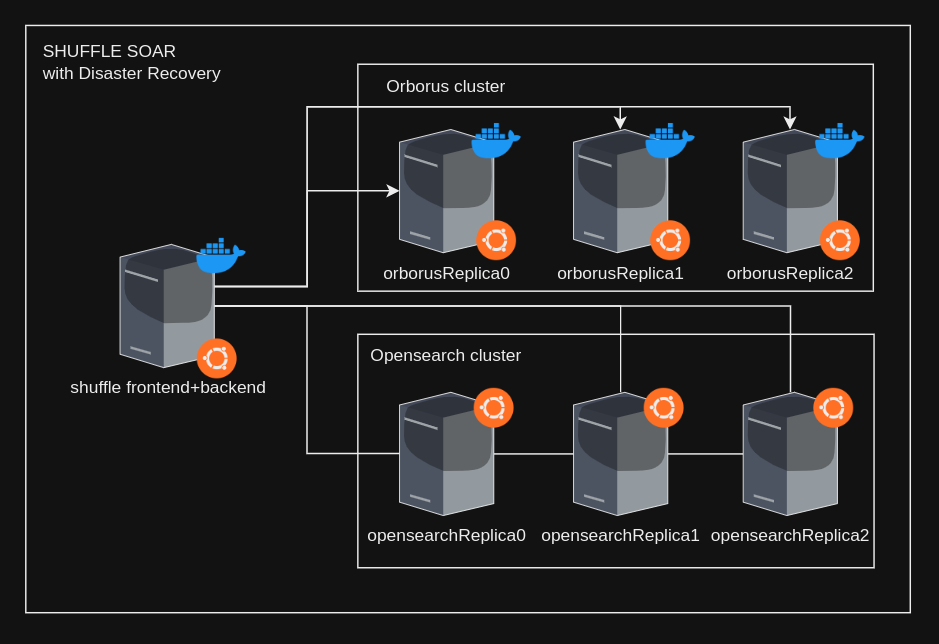
To implement this, follow these steps:
-
Define in all your nodes the list of hostnames in /etc/hosts so all the machines can do the necessary IP resolutions when they have a hostname.
-
Configure an OpenSearch database cluster. For this step, it is recommended to follow the official documentation https://opensearch.org/docs/latest/tuning-your-cluster/index/. Anyways to achieve this in a easy way you just need to change this settings in each opensearch node and reload the service:
Code
Editable
Response
- Deploy a node containing both the frontend and backend components. In the configurations of this node, all nodes of the database cluster should be included to experience the effects of the previous step. The dockerfile should look like this:
Dockerfile
Editable
Response
Also for this step you need to change the value of a variable inside the .env so it looks like this:SHUFFLE_OPENSEARCH_URL=SHUFFLE_OPENSEARCH_URL=https://192.168.0.30:9200,https://192.168.0.31:9200,https://192.168.0.32:9200. Each one of that IPs is the corresponding one to each opensearch node.
- Deploy as many Orborus nodes as desired. At a minimum, it is recommended to deploy 2 nodes. If scaling is required regarding the maximum number of concurrently executing Workflows, the number of these nodes can be increased. The dockerfile of each one of the orborus nodes should look like this:
Dockerfile
Editable
Response
You need to change the value of the environment BASE_URL of this Dockerfile, so it aims to the IP of your Shuffle frontend+backend node.
Kubernetes
Shuffle on Kubernetes is possible thanks to our official Helm chart! This lets you run Shuffle across your cluster nodes with native pod management. For chart details and source templates, visit the Shuffle Kubernetes repository.
To run only Orborus, Worker, and apps in your cluster while keeping the backend in Shuffle Cloud, follow the Hybrid Kubernetes runtime setup. Its Worker image manager copies missing app images into your private registry automatically.
Things to prepare for Kubernetes
Before installing Shuffle with Helm:
- Cluster & CLI: A running Kubernetes cluster (v1.23+) with
kubectland Helm 3+. - Dedicated Namespace: Always use a dedicated namespace (
shuffle). Don't deploy unrelated services into the same namespace, because Shuffle-created worker and app Deployments/Services are dynamically managed here. - RBAC Permissions: Permissions to create namespace-scoped deployments, services, roles, role bindings, service accounts, PVCs, secrets, and network policies.
- Storage Class: A default storage class (or explicit volume claim) for persistent OpenSearch storage.
- Database: Decide whether to use the chart's built-in OpenSearch or point Shuffle to an external OpenSearch/Elasticsearch cluster via
backend.openSearch.url. - Registry Access: Image pull access to
ghcr.ioand required app container registries.
Preparing Kubernetes Secrets
Store sensitive environment variables in a Kubernetes Secret rather than plain-text Helm values:
Bash
Editable
Response
Creating values.yaml
Create a production values.yaml file:
YAML
Editable
Response
Installing with Helm
Deploy Shuffle directly from the official OCI registry:
Bash
Editable
Response
Verifying Deployment
Check pod status, services, and ingress:
Bash
Editable
Response
Upgrading Shuffle
To upgrade your deployment when a new chart version is released:
Bash
Editable
Response
Uninstalling and Resource Cleanup
When uninstalling Shuffle, Helm deletes chart-managed objects. Dynamically spawned worker and app pods managed by Orborus should be cleaned up using label selectors:
Bash
Editable
Response
Shuffle Apps on Kubernetes
By default, Shuffle Worker creates a Kubernetes Deployment and Service for each app. Each app and version has its own Deployment and Service. Shuffle automatically deploys a set of apps, and other apps are deployed on demand when they are first used.
You can use app.* Helm values to control parts of the app deployment (resources, security context, etc.). These values are converted to environment variables on Orborus, and Orborus passes them to Worker when creating app Deployments. When worker.enableHelmDeployment is set, the app configuration is set on the worker directly. This configuration applies to all apps (you cannot scale or resource-tune individual apps in this mode).
If you want to set CPU and memory for apps that are created dynamically by Worker, use app.resources (or app.resourcesPreset) in the chart. These values are applied to all dynamically created app Deployments.
If you want full control, you can deploy apps using Helm instead. This gives you:
- full control over app deployments via Helm values
- granular control per app and version (replicas, resources, etc.)
- fewer issues with on-demand started apps (see https://github.com/Shuffle/Shuffle/issues/1739)
To deploy apps using Helm, set apps.enabled=true. By default, this deploys shuffle-tools, shuffle-subflow, and http. You can add your own apps as well.
YAML
Editable
Response
Notes:
- The key under
appsis only used to identify the app in values. It can be any unique name. - You can override any
app.*value for a specific app viaapps.<appKey>.*(for example,apps.shuffleTools.replicaCount). - Hybrid mode is supported: deploy some apps with Helm while still letting Worker create others on demand.
If you do not want Worker to manage app deployments, set worker.manageAppDeployments=true. This removes the required permissions from the Shuffle Worker Kubernetes Service Account and requires you to deploy all apps manually using Helm.
Shuffle App Service Accounts
By default, apps use a shared shuffle-app service account. If you deploy apps with Helm, you can use a dedicated service account per app.
YAML
Editable
Response
All app service accounts use the shuffle-app role by default.
Orborus with Kubernetes
To configure Kubernetes, you need to specify a single environment variable for Orborus: RUNNING_MODE. By setting the environment variable RUNNING_MODE=kubernetes, execution should work as expected!
Scaling Kubernetes
To scale Shuffle in Kubernetes, use the following environment variables in the Orborus container:
Bash
Editable
Response
Private apps on Kubernetes
To run private apps on Kubernetes, you need a private container registry to pull images from. Once you configure REGISTRY_URL to point to your private registry, Shuffle will automatically pull app images from there.
To install the Shuffle Helm chart pointing to your custom registry, run:
Bash
Editable
Response
If your registry allows unauthenticated pushes (or you're not using Docker Hub), you can skip this step. However, if your private registry requires authentication, create and share a Docker registry secret using:
Bash
Editable
Response
After switching to your private registry, the images for already-installed apps will not be available in the new registry. To avoid image-pull failures, you can mirror all existing Shuffle app images from Docker Hub into your private registry.
You can use skopeo to mirror the entire repository (docker.io/frikky/shuffle) or run the following script to pull and push every tag manually:
Bash
Editable
Response
Swarm HAProxy for worker load balancing
In Docker Swarm, Orborus sends requests to shuffle-workers:33333 through the Swarm VIP. The routing mesh is not load-aware, so requests can hit saturated workers and time out under load. You can improve distribution by placing HAProxy in front of the worker tasks and pointing Orborus to HAProxy.
This can be done after the Swarm stack is up, without changing how Orborus deploys workers or apps.
1) Create the HAProxy config
Create a file named haproxy.cfg on a Swarm manager:
cfg
Editable
Response
2) Deploy HAProxy as a Swarm service
Ensure the worker overlay network exists (Orborus creates shuffle_swarm_executions by default):
Bash
Editable
Response
Create the HAProxy config and deploy it. Do not publish port 33333 on HAProxy if the worker service already uses it (Swarm only allows one published service per port). Orborus can reach HAProxy over the overlay network:
Bash
Editable
Response
3) Point Orborus to HAProxy
Set the worker server URL so Orborus sends executions through HAProxy:
Bash
Editable
Response
Restart Orborus after updating the environment:
Bash
Editable
Response
4) Verify
Bash
Editable
Response
Swarm HA deployment (Gateway + API + Runtime)
This is a production-style Swarm setup that is reliable for first deployment and easy to scale later.
Traffic flow:
- Users hit
gatewayon:8080. gatewayroutes/api/*toshuffle-backendand/tofrontend.shuffle-backendtalks to OpenSearch and Memcached over internal overlay DNS.orborusruns execution scheduling and uses a dedicated execution overlay network.
Nginx-HA-behavior
In this setup, gateway is Nginx and acts as the edge router for both API and UI traffic.
/api/*is proxied to backend tasks./is proxied to frontend tasks.- If one backend/frontend task fails, Nginx continues routing to remaining healthy tasks.
To make Nginx itself highly available:
- run
gatewaywith 2+ replicas, - spread replicas across nodes,
- use an external load balancer or DNS round-robin to route traffic to node IPs when using
ports.mode: host.
Example scaling:
Bash
Editable
Response
When using host-published ports, avoid scheduling all gateway replicas on one node. Verify distribution with:
Bash
Editable
Response
Pre-flight (run once)
Bash
Editable
Response
File 1: docker-stack.ha.yml
YAML
Editable
Response
File 2: swarm-nginx.conf
nginx
Editable
Response
Deploy
Bash
Editable
Response
Verify (must pass)
Bash
Editable
Response
Quick API checks:
API Call
Response
No response received.
If startup feels slow in the first 1-3 minutes, this is usually normal due to backend init tasks and OpenSearch warmup.
Single-node-vs-multi-node-replicas
- The example above is tuned to work on a single node on the first try.
- For multi-node HA, increase replicas after initial validation:
Bash
Editable
Response
If you use max_replicas_per_node: 1, make sure you have enough swarm nodes. Otherwise replicas stay pending.
max_replicas_per_node: 1 can be useful for HA spreading when you run multiple nodes.
Recommended usage:
- Set it on services you want distributed, for example
shuffle-backendandorborus. - Keep replicas equal to or lower than the number of eligible nodes.
- For
orborus, eligible nodes are manager nodes because ofnode.role == managerconstraint.
Example:
YAML
Editable
Response
Practical checks:
Bash
Editable
Response
If tasks stay Pending, lower replicas or add more eligible nodes.
Important Swarm DNS notes
- In some Swarm environments, service VIP routing can become unstable after many updates.
- If you see
no route to hostor random internal timeouts, prefertasks.<service-name>for internal service-to-service traffic. endpoint_mode: dnsrron OpenSearch and Memcached reduces reliance on VIP routing.
Swarm-overlay-network-encryption
If you want encrypted node-to-node traffic on Swarm overlays, pre-create encrypted networks and point your stack file to those external networks.
- Pre-create encrypted overlays:
Bash
Editable
Response
- In your stack/compose config file, use external networks:
YAML
Editable
Response
- Deploy as normal:
Bash
Editable
Response
- Verify encryption and service attachment:
Bash
Editable
Response
Notes:
- Overlay encryption secures node-to-node container traffic on those overlays.
- It does not replace HTTPS/TLS for user-facing traffic.
- Orborus can create missing Swarm networks dynamically; pre-creating encrypted overlays avoids accidental unencrypted network creation.
Slow backend response troubleshooting
If backend APIs are slow after deployment, check these first:
-
Backend startup/init window:
- Backend may perform index checks, rollovers, and startup validation.
- During this phase, response times can be temporarily high.
-
Memcached connectivity:
- Repeated memcache timeouts add latency to many API calls.
- Validate from backend container:
Bash
Editable
Response
- OpenSearch connectivity:
Bash
Editable
Response
- Live logs:
Bash
Editable
Response
Temporary mitigation if memcached routing is unstable:
- Remove
SHUFFLE_MEMCACHEDfrom backend/orborus and redeploy. - This usually improves API responsiveness immediately while you fix cache routing.
Production recommendations
- Use at least 3 Swarm manager/worker nodes for HA.
- Run OpenSearch as a proper multi-node cluster for production data durability.
- Mount persistent volumes for:
- OpenSearch data (
shuffle-database), - Shuffle files (
shuffle-files), - app hotload directory (
shuffle-apps).
- OpenSearch data (
- Keep gateway, backend, and frontend on the same overlay network.
- Keep execution workloads isolated on
swarm_executions. - Monitor
docker service psanddocker service logscontinuously during upgrades.
Preferred-OpenSearch-HA-setup
The shuffle-opensearch service in the Swarm HA example above is intentionally single-node. It is suitable for first deployment validation, but it is not the preferred production architecture for durable data.
For production, the recommended setup is:
- 3 dedicated OpenSearch nodes
- one persistent data path per OpenSearch node
- replication handled by OpenSearch itself, not by sharing one filesystem
- Shuffle backend configured with all OpenSearch endpoints
The most important storage rule is:
- do not mount the same shared
shuffle-databasefolder into multiple OpenSearch nodes - do not use one NFS path as
/usr/share/opensearch/datafor several OpenSearch nodes - do give each node its own local persistent disk or block volume
This means the storage model is different for different Shuffle components:
shuffle-files: shared storage is fine, and NFS is a common optionshuffle-apps: shared storage is fine if you want hotload content available across nodesshuffle-database: should be local and dedicated per OpenSearch node
Example topology:
opensearch-1on node A with/srv/opensearch-dataopensearch-2on node B with/srv/opensearch-dataopensearch-3on node C with/srv/opensearch-data
Each OpenSearch node should have equivalent settings to the following:
YAML
Editable
Response
Notes:
node.namemust be unique on each nodediscovery.seed_hostsandcluster.initial_cluster_manager_nodesshould contain all 3 OpenSearch nodesnetwork.hostmust be reachable from the other OpenSearch nodes and from Shuffle backend- size the Java heap according to available memory; a common starting point is 50% of RAM, with equal
-Xmsand-Xmx
Once the OpenSearch cluster is healthy, configure Shuffle backend to talk to all nodes:
Bash
Editable
Response
If you use TLS or authentication on OpenSearch, keep the matching backend settings in place as well, such as:
Bash
Editable
Response
OpenSearch TLS certificate setup
SHUFFLE_OPENSEARCH_CERTIFICATE_FILE should point to a CA certificate file inside the backend container/pod. Shuffle reads this file and uses it as the CA trust when connecting to OpenSearch.
Quick start
- Place your OpenSearch CA certificate on the host (PEM format), for example
./certs/es-ca.pem. - Mount it into backend at a stable path (for example
/shuffle-files/es_certificate). - Set backend environment variables:
Bash
Editable
Response
- Restart/redeploy backend.
- Verify:
API Call
Response
No response received.
Expected backend log line:
text
Editable
Response
Compose example (backend service):
YAML
Editable
Response
Kubernetes/Helm example:
YAML
Editable
Response
Production hardening checklist
- Keep
SHUFFLE_OPENSEARCH_SKIPSSL_VERIFY=falsein production. - Make sure every hostname in
SHUFFLE_OPENSEARCH_URLexists in certificate SANs. - Use
https://endpoints only when OpenSearch security/TLS is enabled. - Store OpenSearch credentials as secrets (not plaintext in committed files).
- Rotate certs and credentials regularly; test rollover in staging first.
- Validate failover with one OpenSearch node down while Shuffle remains operational.
Common failure patterns:
x509: certificate signed by unknown authority: wrong/missing CA file mount or path.certificate is valid for X, not Y: endpoint hostname does not match cert SAN.401/403: bad username/password or role permissions.- HTTP/HTTPS mismatch errors:
SHUFFLE_OPENSEARCH_URLprotocol does not match OpenSearch security mode.
If you prefer to keep OpenSearch inside Swarm, treat each node as a fixed service instead of one floating replicated service:
- deploy one OpenSearch service per host
- add placement constraints so each service stays on its intended node
- mount that host's local disk path into that service
- configure all OpenSearch nodes to join the same cluster
This avoids the common failure mode where one OpenSearch container is rescheduled onto another node that does not have the original data path.
OpenSearch HA validation checklist
Before pointing production Shuffle traffic at the new cluster, validate in this order:
- Confirm cluster formation from OpenSearch:
API Call
Response
No response received.
-
Update
SHUFFLE_OPENSEARCH_URLon backend and redeploy Shuffle backend. -
Validate Shuffle itself:
API Call
Response
No response received.
Then log in, save a workflow, execute a workflow, and confirm execution history is written successfully.
- Run a failover test:
- stop one OpenSearch node
- confirm Shuffle remains usable
- confirm cluster health degrades but stays operational
- start the node again and verify it rejoins
- Run a persistence test:
- restart OpenSearch nodes one at a time
- confirm indices and execution history remain intact
For additional OpenSearch sizing, shard allocation, and cluster tuning guidance, follow the official OpenSearch documentation:
Network Configuration
Networking with Shuffle is pretty straight forward. What we check for are the following:
- Can Shuffle reach your services?
- Can the Shuffle services reach each other (frontend/backend/database/Orborus)
There are however many things that can go wrong with these simple mechanisms, leading to a need for network configuration changes. Shuffle is however built on HTTP, and can be easily modified and made to work both in air-gapped locations as well as with enterprise proxy environments.
Proxy configuration
Proxies are another requirement to many enterprises, hence it's an important feature to support. There are two places where proxies can be implemented:
- Shuffle Backend: Connects to Github and Dockerhub.
- Shuffle Orborus: Connects to Dockerhub and Shuffle Backend.
PS: Orborus settings are also set for the Worker
To configure these, there are two options:
- Internal vs External proxy (shuffle vs apps)
- Individual containers
- Globally for Docker
To DISABLE proxy for internal Shuffle traffic (between internal containers), add the following environment variables to Orborus:
Code
Editable
Response
To disable proxy use for specific domains, use NO_PROXY with comma separation between domains:
Code
Editable
Response
If you need a separate no-proxy list for internal Shuffle traffic, set one of these on Orborus:
Code
Editable
Response
Global Docker proxy configuration
Follow this guide from Docker: https://docs.docker.com/network/proxy/
Internal Proxy settings
The main proxy issues may arise with the Backend and Orborus containers. This is related to how Orborus reaches the backend, how the worker downloads apps, and how apps connect to external systems.
Current behavior in code:
SHUFFLE_PASS_WORKER_PROXY=true: Orborus passesHTTP_PROXY,HTTPS_PROXY, andNO_PROXYto Worker containers.SHUFFLE_PASS_APP_PROXY=true: Worker passesHTTP_PROXY,HTTPS_PROXY,NO_PROXY, andno_proxyto App containers.- If set,
SHUFFLE_INTERNAL_HTTP_PROXYandSHUFFLE_INTERNAL_HTTPS_PROXYare also forwarded down to Worker and App containers. - Backend internal HTTP clients switch to
SHUFFLE_INTERNAL_*when talking to internal Shuffle targets (shuffle-*hosts, worker/app ports, and theBASE_URLhost match). - Setting
SHUFFLE_INTERNAL_HTTP_PROXY=noproxyandSHUFFLE_INTERNAL_HTTPS_PROXY=noproxydisables internal proxying for those internal routes.
Environment variables to be sent to the Orborus container:
Code
Editable
Response
Environment variables for the Backend container:
Code
Editable
Response
Opensearch / Elasticsearch proxies
Connections from Shuffle's backend to the Opensearch database does NOT follow normal HTTP_PROXY and NOPROXY environment variables.
Opensearch and Elasticsearch proxy configuration can be set using the SHUFFLE_OPENSEARCH_PROXY environment variable.
Individual container proxy
To set up proxies in individual containers, open docker-compose.yml and add the following lines with your proxy settings (http://my-proxy.com:8080 in my case).
PS: Make sure to use uppercase letters, and not lowercase (HTTP_PROXY, NOT http_proxy)
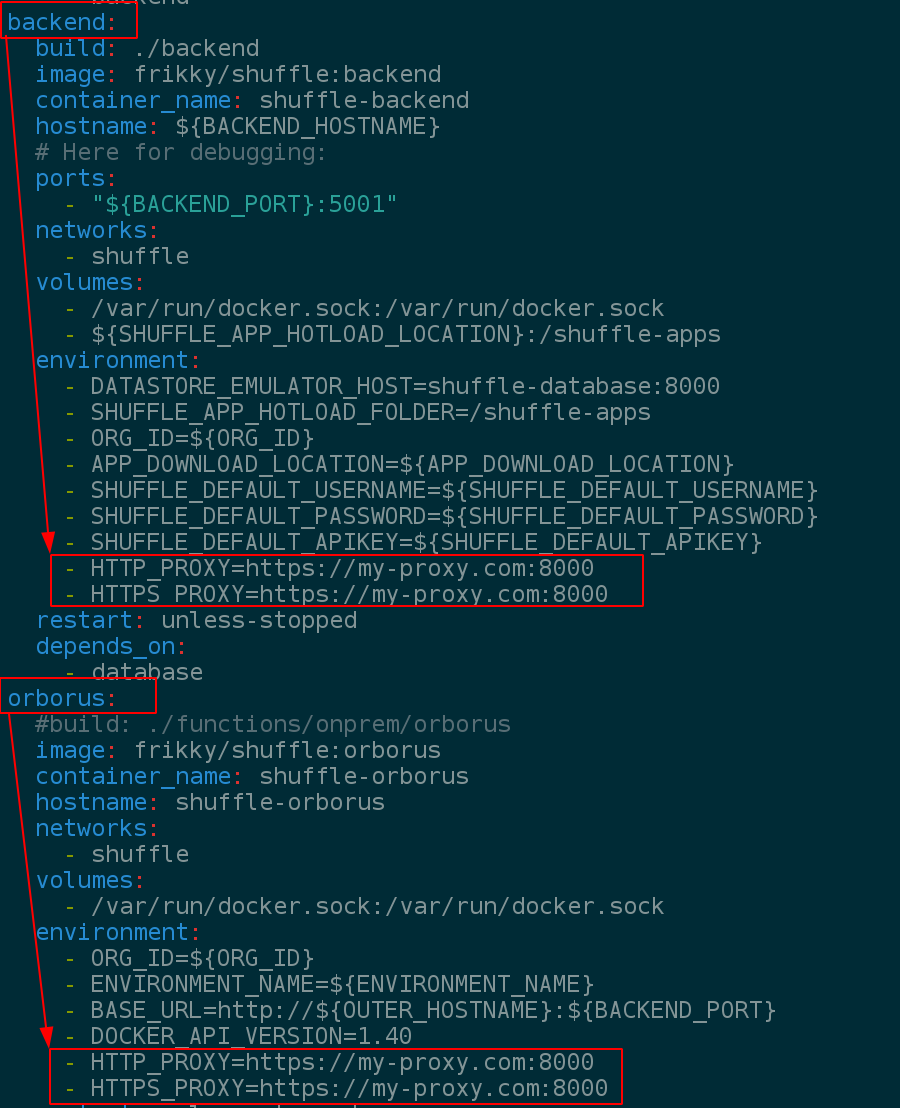
Orborus running on a different network
All you'll need to do is allow orborus to have access to the backend OR frontend of Shuffle.
Internal vs External proxy
As of November 2023, we added another way to configure a difference between these two:
- Internal tools like Backend -> Orborus -> Worker <-> Apps
- Apps -> External tools
This makes it possible to have an internal proxy that is different from what apps use for external services. These environment variables should be added to the Orborus container.
Code
Editable
Response
PS: This is in beta. Reach out to support@shuffler.io if you have any trouble with this.
App SDK proxy behavior
shuffle_sdk initializes proxy settings in this order:
HTTP_PROXY,HTTPS_PROXY,NO_PROXY- Override with
SHUFFLE_INTERNAL_HTTP_PROXY,SHUFFLE_INTERNAL_HTTPS_PROXY, andSHUFFLE_INTERNAL_NO_PROXYwhen set - If proxy value is
noproxy, it is treated as disabled
The SDK applies this proxy config to its own HTTP calls (for example: results streaming, datastore/cache APIs, and file APIs).
Current implementation note: when SHUFFLE_INTERNAL_HTTPS_PROXY is set, the SDK currently applies the value from SHUFFLE_INTERNAL_HTTP_PROXY for HTTPS traffic as well. Set both internal proxy vars to the same value if you need consistent behavior.
HTTPS
HTTPS is enabled by default on port 3443 with a self-signed certificate for localhost. If you would like to change this, the only way (currently) is to add configure and rebuild the frontend. If you don't have HTTPS enabled, check updating shuffle to get the latest configuration. Another workaround is to set up an Nginx reverse proxy you can control yourself. See further down for more details
Code
Editable
Response
Necessary info for the truststore to create TLS/SSL certificates:
- Certificates are located in ./frontend/certs.
- ./frontend/README.md contains information on generating a self-signed cert
- (default): Privatekey is named privkey.pem
- (default): Fullchain is named fullchain.pem
If you want to change this, edit ./frontend/Dockerfile and ./frontend/nginx.conf.
After changing certificates, you can rebuild the entire frontend by running (./frontend)
Code
Editable
Response
Make sure that the output image is the same in your docker-compose.yml file. This should work seemlessly for you next.
App Certificates
As of November 2023, it is possible to mount folders into apps. This is in order for you to have better control of what Shuffle Apps can do, with the main reason being to manage certificates or dynamic, large files.
To mount in certificates to ALL App containers, add the following environment variable to the "Orborus" container, but change the source and destination folder. The item BEFORE the colon (:) is the source folder on your machine, with the one AFTER the colon (:) being for the destination folder in the app itself.
If you want more multiple folders mounted, add them with a comma. Folders MUST exist, otherwise apps may not run, and the Worker will throw an error in the logs with Workflow Runs not finishing. If you are in production, we recommend trying this feature in a separate Runtime Location.
Code
Editable
Response
Using the Nginx Reverse Proxy for TLS/SSL
If you intend to use Nginx as a Reverse Proxy, the main steps are below. Here is a basic single-server architecture for it. The Docker version is further down.
- Install Nginx on your server (find the correct distro), or in a Docker container by itself.
- Make sure you have a VALID certificate that matches your domain/hostname and add this to your Nginx server
- In the nginx.conf file (/etc/nginx/conf.d/default.conf or similar), under "server", add the information below. Make sure to change the "proxy_pass" part. This is how it will redirect all /api requests.
Code
Editable
Response
- Restart Nginx!
systemctl restart nginx
Nginx in Docker
- Add the following service to your docker-compose.yml
Code
Editable
Response
- Add a new nginx configuration file called
nginx-confwith the following (you may add additional Nginx configuration to this):
Code
Editable
Response
- Add a folder called "certs" with your certificates named
cert.crtandcert.key. - Restart everything:
docker-compose down; docker-compose up -d
Internal Certificate Authority
By default, certificates are not being verified when outbound traffic goes from Shuffle. This is due to the massive use of self-signed certificates when using internal services. You may ignore certificate warnings by adding SHUFFLE_SKIPSSL_VERIFY=true to the environment of each relevant service - most notably used for Orborus. If you want to accept your Certificate Authority for all requests, there are a few ways to do this:
- Mount your CA certificates (recommended): Add the
./certs:/certsmount to the Orborus service in your docker-compose.yml. Ensure that the shuffle directory contains a certs subdirectory with all the necessary certificate files. This will automatically append all certificates in./certsto the system's root CA. - Docker Daemon level - point to your cert:
$ dockerd --tlscacert=/path/to/custom-ca-cert.pem - Add it to every app (per-image configuration). You can do this by modifying the Dockerfile for an app and manually building it with the certificate in the Dockerfile of each Docker image. Restart Shuffle after this is done.
As this may require advanced Docker understanding, reach out to ask us about it: support@shuffler.io
IPv6
Shuffle supports IPv6 in Docker by default, but your docker engine may not. IPv6 can be enabled in Docker by adding it to the /etc/docker/daemon.json file on the host as per this article by Docker:
https://docs.docker.com/config/daemon/ipv6/
Enterprise Environments
In most enterprise environments, Shuffle will be behind firewalls, proxies and other networking equipment. If this is the case, below are the requirements to make Shuffle work anywhere. The most common issue has to do with downloads from Alpine linux's Docker images while Shuffle is running.
PS: If external connections are blocked, you may further have issues running Apps. Read more about manual image transfers here.
Change the Database from OpenSearch to Elasticsearch
-
Open the Docker-compose.yml file in the Shuffle directory. Find the OpenSearch container section and either comment out or remove the details. Save your modifications to the file.
-
Now open the .env file and change the below value in the .env from false to true for Elasticsearch database enable.
-
Find the part in the .env file that defines database configurations. Update the Elasticsearch host configuration using your Elasticsearch IP address.
Domain Whitelisting
These URL's are used to get Shuffle up and running. Whitelisting them for the Shuffle services should make all processes work seamlessly.
PS: We do intend to make this JUST https://shuffler.io in the future.
Code
Editable
Response
Incoming IP Whitelisting
When using Shuffle in the cloud (*.shuffler.io), the incoming IP to your services by default will be be from our cloud functions, if you are not using Runtime Locations. The range is not static, and may wary based on region. Here's a list (mostly IPv6 as of 2025):
Code
Editable
Response
If you want direct access with ANY app in your on-premises environment, we recommend setting up a new environment on a server in the same network. Steps to set this up:
- Go to /admin?tab=locations and create a new runtime location
- Click the Copy button in the "Command" tab to copy the relevant Docker command. This requires Docker installed on the server in question.
- Run the copied command on your server on-premises.
- Change the Environment a workflow runs with to the new environment. When ran, it will automatically run on YOUR server, instead of on our cloud.
- Your server will now be reaching out to Shuffle cloud for jobs every few seconds. This requires outbound access from YOUR network to the domains shuffler.io and shuffle-backend-stbuwivzoq-nw.a.run.app.
Environment page:
Architecture connecting from cloud to onprem (hybrid):
Static inbound IPs for cloud
As a customer of Shuffle we can provide you with a static IP range with secondary domains that can be used for cloud routing. May incur costs depending on needs. Contact support@shuffler.io for more info.
Areas of relevance:
- Your Environment -> Shuffle Cloud (*.shuffler.io)
- Shuffle Cloud -> Your Environment
Manual Docker image transfers
In certain cases you may not have access to download or build images at all. If that's the case, you'll need to manually transfer them to the appropriate server. If the image to transfer is an app, it should be moved to the "Orborus" server. Otherwise; backend server.
Bash
Editable
Response
No Internet Install
This procedure will help you export what you need to run Shuffle on a no internet host.
The following features will not work without internet:
- Cloud Sync
- Automatic Health System (/health page)
- UI app activations
- Automatic App generation AI
- Depending on your network: Search engine. This is a frontend feature, if you are in a no-internet zone, it will stop working.
- Prerequise
-
Both machines has Docker and Docker Compose installed already
-
Your host machine already needs the images on it to make them exportable
- Pull images on original machine
Shuffle need a few base images to work:
- shuffle-frontend
- shuffle-backend
- shuffle-orborus
- shuffle-worker
- shuffle:app_sdk
- opensearch
- shuffle-subflow
Bash
Editable
Response
Be careful with the versioning for opensearch, all other are going to use the tag "latest". You will also need to download and transfer ALL the apps you want to use. These can be discovered as such:
Bash
Editable
Response
- Save images and archive them
Bash
Editable
Response
- Export data to the targeted machine
Use scp, usb key, ..., to copy the previous archive to the machine. More about manual transfers here
-
Import docker images to host without internet
Code
Editable
Response
-
Deploy Shuffle without Internet
Create folders to add the python apps
Code
Editable
Response
Now, you just need to configure and install Shuffler like in normal procedure
Database
To modify the database location, change "DB_LOCATION" in .env (root dir) to your new location.
Database indexes (OpenSearch)
Shuffle uses OpenSearch (or Elasticsearch) as its primary database. Below is a complete list of all indexes used by Shuffle, organized by category.
Default Credentials
The default OpenSearch credentials for Shuffle are:
- Username:
admin - Password:
StrongShufflePassword321!
These can be changed via environment variables in your .env file:
SHUFFLE_OPENSEARCH_USERNAMESHUFFLE_OPENSEARCH_PASSWORD
Index Prefix
You can set a custom prefix for all indexes using the SHUFFLE_OPENSEARCH_INDEX_PREFIX environment variable. This is useful when running multiple Shuffle instances on a single OpenSearch cluster.
Example: If SHUFFLE_OPENSEARCH_INDEX_PREFIX=prod, the workflow index becomes prod_workflow.
Core Indexes
| Index | Description |
|---|---|
workflow | Workflow definitions and configurations |
workflowexecution | Workflow execution records and results |
workflowapp | Workflow application definitions |
workflowappauth | App authentication configurations |
workflowappauthgroup | Authentication group configurations |
workflowqueue-{env} | Execution queue per environment (dynamic, based on Orborus environment) |
workflow_revisions | Workflow version history |
app_revisions | App version history |
Organization & User Indexes
| Index | Description |
|---|---|
organizations | tenant data and settings |
users | User accounts and profiles |
sessions | User session tokens |
apikey | API key storage |
partners | Partner tenant data |
org_statistics | tenant usage statistics |
org_cache | tenant cache data (KV store) |
org_cache_revisions | Cache version history |
Files & Storage Indexes
| Index | Description |
|---|---|
files | File metadata storage |
datastore_category | Datastore category definitions |
datastore_ngram | N-gram data for search functionality |
oauth2_storage | OAuth2 token storage |
Triggers & Automation Indexes
| Index | Description |
|---|---|
hooks | Webhook configurations |
schedules | Scheduled task definitions |
pipelines | Pipeline definitions |
trigger_auth | Trigger authentication data |
environments | Environment configurations |
gmail_subscription | Gmail trigger subscriptions |
Notifications & Communication Indexes
| Index | Description |
|---|---|
notifications | Notification records |
conversations | AI conversation data |
conversation_metadata | Conversation metadata |
suggestions | System suggestions |
Statistics & Monitoring Indexes
| Index | Description |
|---|---|
platform_health | Platform health check data |
app_execution_values | App execution value cache |
app_stats | App usage statistics |
creator_stats | Creator statistics |
environment_stats | Environment statistics |
singul_stats | Singul integration stats |
live_execution_status | Real-time execution status |
Detection & Rules Indexes
| Index | Description |
|---|---|
disabled_rules | Disabled detection rules |
selected_rules | Selected/enabled detection rules |
Other Indexes
| Index | Description |
|---|---|
openapi3 | OpenAPI spec storage |
usecases | Use case definitions |
reseller_deal | Reseller deal data |
training | Training/ML data |
synckey | Cloud sync key data |
shuffle_logs | Shuffle system logs |
Indexes with Aliasing & Rollover
The following 11 indexes are configured with aliasing and automatic rollover for better scaling. These indexes are created with the pattern {index}-000001 and have an alias pointing to the write index. This is handled by InitOpensearchIndexes() on startup.
Code
Editable
Response
Default rollover conditions:
- Max age: 90 days
- Max size: 40GB
- Max documents: 1,000,000
Default index settings:
- Shards: 3
- Replicas: 1
- Refresh interval: 30s
You can customize these with environment variables:
OPENSEARCH_INDEX_CONFIG- Custom JSON for index settings/mappingsOPENSEARCH_INDEX_ROLLOVER- Custom JSON for rollover conditionsSHUFFLE_SKIP_OPENSEARCH_INDEX_INIT=true- Skip automatic index initialization
Re-indexing & Index Management
When to Re-index
Re-indexing is rarely needed since Shuffle uses automatic rollover for high-volume indexes. However, you may need to re-index when:
workflowexecutionis slow - The most common issue. If this index grew large before rollover was configured, queries become slow. Re-index into a fresh index with proper aliasing.- Changing shard count - OpenSearch locks primary shard count at creation. If you need more shards for a large dataset, you must re-index.
- Field mapping changes - OpenSearch doesn't allow changing field types (e.g.,
texttokeyword). Schema changes require re-indexing. - Index corruption - Rare, but if an index gets corrupted, re-index from backups.
- Cluster migration - Moving from single-node to clustered OpenSearch, or migrating between clusters.
Re-indexing a Single Index
API Call
Response
No response received.
Checking Index Health
API Call
Response
No response received.
Manual Rollover
If an index grows too large before automatic rollover triggers:
API Call
Response
No response received.
Deleting Old Index Data
For indexes with rollover, you can delete old backing indexes:
API Call
Response
No response received.
Warning: Always backup data before re-indexing or deleting indexes. Use OpenSearch snapshots for production environments.
Debugging
As Shuffle has a lot of individual parts, debugging can be quite tricky. To get started, here's a list of the different parts, with the latter three being modular / location independent.
| Type | Container name | Technology | Note |
|---|---|---|---|
| Frontend | shuffle-frontend | ReactJS | Cytoscape graphs & Material design |
| Backend | shuffle-backend | Golang | Rest API that connects all the different parts |
| Database | shuffle-database | Google Datastore | Has all non-volatile information. Will probably move to elastic or similar. |
| Orborus | shuffle-orborus | Golang | Runs workers in a specific environment to connect locations. Defaults to the environment "Shuffle" onprem. |
| Worker | worker-id | Golang | Deploys Apps to run Actions defined in a workflow |
| app sdk | appname_appversion_id | Python | Used by Apps to talk to the backend |
| worker-8a666e4f-e544-440e-bf0f-4220e7cc9e25 |
Disabling Image downloads
There are cases where automatic image downloads may occur, such as when you restart Orborus. You can disable this with SHUFFLE_AUTO_IMAGE_DOWNLOAD=false
Execution debugging
Execution debugging might be the most notable issue you might explain. This is because there are a ton of reasons that it might crash. Before going into techniques to find what's going on, you'll need to understand what exactly happens when you click the big execution button.
Frontend click -> Backend verifies and deploys executions -> (based on environments) orborus deploys a new worker -> worker finds actions to execute -> your app is executed.
- A workflow is executed
- The backend verifies whether you can execute and deploys to environment
- Orborus is listening to environment and deploys worker if it's the correct one
- Worker deploys actions if they have the right environment
- App executes and returns data back to the execution
As previously stated, a lot can go wrong. Here's the most common issues:
- Networking (firewalls / proxies)
- Badly formed apps.
- Bad environment
General debugging
This part is mean to describe how to go about finding the issue you're having with executions. In most cases, you should start from the top of the list previously described in the following way:
-
Find out what environment your action(s) are running under by clicking the App and seeing "Environment" dropdown. In this case (and default) is "Shuffle". Environments can be specified / changed under the path /admin
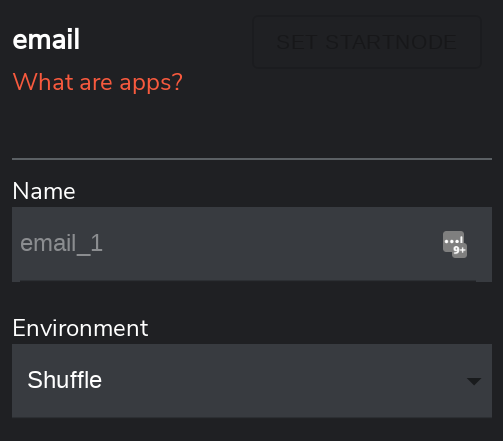
-
Check if the workflow executed at all by finding the execution line in the shuffle-backend container. Take note that it mentions environment "Shuffle", as found in the previous step.
Bash
Editable
Response
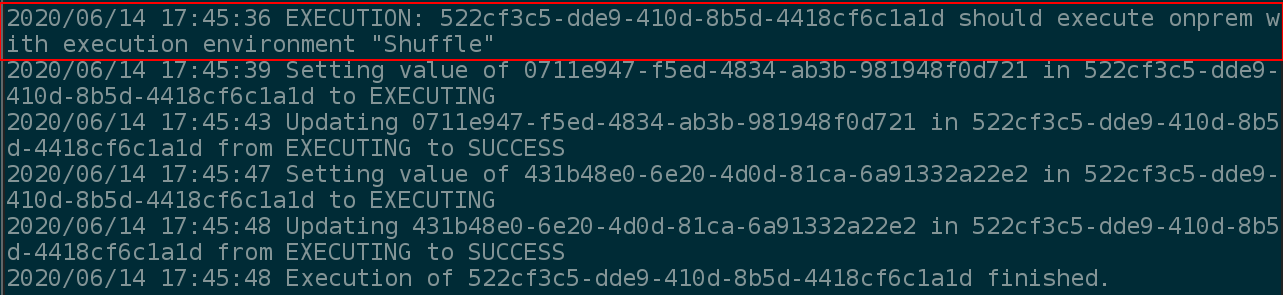
- If it executed, check whether Orborus is running, before checking it's logs for "Container <container_id> is created. The container_id is the worker it has deployed. Take not of the environment again at the end of the line. If you don't see this line, it's most likely because it's running in the wrong environment.
Check if shuffle-orborus is running
Bash
Editable
Response
Find whether it was deployed or not
Bash
Editable
Response

Check environment of running shuffle-orborus container.
Bash
Editable
Response
Expected env result where "Shuffle" corresponds to the environment

- Check whether the worker executed your app. Remember that we found <container_id> previously by checking the logs of shuffle-orborus? Now we need that one. Workers are and will always be verbose, specifically for the reason of potential debugging.
Find logs from a docker container
Bash
Editable
Response

As can be seen in the image above, is shows the exact execution order it takes. It starts by finding the parents, before executing the child process after it's finished. Take note of the specific apps being executed as well. It says "Time to execute <app_id> with app <app_name:app_version>. This indicates the app THAT WILL be executed. The following lines saying "Container <container_id> is the container created with this app.
- App debugging in itself might be the trickiest. There are a lot of factors like branches, bad workflow building etc that might come into play. This builds on the same concept as the worker, where you pass the container ID it specified.
Get the app logs
Bash
Editable
Response
As you will notice, app logs can be quite verbose (optional in a later build). In essence, if you see "RUNNING NORMAL EXECUTION" in the end, there's a 99.9% chance that it worked, otherwise some issue might have occurred.
Please notify me if you need help debugging app executions ASAP, as I've done a lot of it, but it's more tricky than the other steps.
Hybrid docker image handling
This section describes older Docker-based Hybrid deployments. For Cloud Hybrid on Kubernetes, use the Worker image manager setup; it downloads, loads, and pushes app images automatically.
We currently don't have a Docker Registry for Shuffle, meaning you need some minor configuration to get Orborus running remotely with the right containers. This only applies to containers not on dockerhub, as we automatically push PYTHON containers there when updated (not OpenAPI)
Here's an example of how to handle this with two different servers and Docker
Bash
Editable
Response
Docker socket
For now, the docker socket is required to run Shuffle. Whether you run with Kubernetes or another clustering technology, Shuffle WILL need access to ContainerD, which is what the docker socket provides. If this is against internal policies and you want a single point of contact for controlling permissions, please have a look at docker socket proxy farther down.
Usage of the socket:
- Backend (Not required, but used for app management)
- Orborus (Required, deploying Workers)
- Worker (Required, deploying Apps. Apps don't have access to the socket.)
API's in use
- Backend: Create, Make, Export docker images. No direct container management.
- Orborus: Download and Remove images. Make, List and Remove containers. Make, List and Remove services.
- Worker: Download and Remove images. Make, List and Remove containers. Make, List and Remove services.
Docker Socket Proxy
In certain scenarios or environments, you may find the docker socket to not have the right permissions, or running the socket directly on your software to be against internal policies. To solve this problem, we've built support for the docker socket proxy, which will give the containers the same permissions, but without the socket being directly mounted in the same container. Another good reason to use the docker socket proxy is to control the docker permissions required.
To use the docker socket proxy, add the following to your docker-compose.yml as a service. This will lauch it together with the rest:
Code
Editable
Response
When done, remove the "/var/run/docker.sock" volume from the backend and orborus services in the docker-compose. To enable the docker rerouting, add this environment variable to both of them
Code
Editable
Response
This will route all docker traffic through the docker-socket-proxy giving you granular access to each API.
Uptime Monitoring
Uptime monitoring of Shuffle can be done by periodically polling the API for userinfo located at /api/v1/getinfo. This is an API that connects to our database, and which will be stuck if we any platform issues occur, whether in your local instance or in our Cloud instance on https://shuffler.io.
Shuffle has and will not have any planned downtime for services on https://shuffler.io, and have built our architecture around being able to upgrade and roll back without any downtime at all. If this occurs in the future for our Cloud platform, we will make sure to notify any active users. We plan to launch a status monitor for our services in 2022.
Basic monitoring can be done with a curl request + sendmail + cronjob as seen in this blogpost with the curl command below. Your personal API key can be found on https://shuffler.io/settings or in the same location (/settings) in your local instance.
API Call
Response
No response received.
Shuffle Server Healthcheck
There are multiple things to check in the Shuffle server to ensure that the health of server is in a good state:
- Disk Space
- Memory
- Elasticsearch service state
For this, the scripts have been prepared with the alerting mechanism which will check if everything is proper or not.
Disk Space Script
This script will determine whether or not the disc space is more than 75% full. If so, an alert will be sent to your Webhook URL. Replace the script's with your Webhook URL.
Bash
Editable
Response
Memory Check Script
This script will determine whether or not the memory utilization is more than 70%. If so, an alert will be sent to your Webhook URL. Replace the script's with your Webhook URL.
Code
Editable
Response
Elasticsearch Service Script
This script will determine whether or not the Elasticsearch service is running or not. If not so, an alert will be sent to your Webhook URL. Replace the script’s with the Elasticsearch IP of your environment. Replace the script's with your Webhook URL.
Code
Editable
Response
Cron Jobs to automate the Process
You can set a cron job to execute the scripts on every 15 minutes and the whole process can be automated.
Code
Editable
Response
Using podman
Our main goal is to provide stable support for docker. But a lot of members from our community run podman (Especially because RHEL 8 uses it). We have tested Shuffle with podman and it works for most parts. While it's not our main focus, The way to run Shuffle with podman is nearly the same.
- Make sure to remove the usage of double quotes from .env after you git clone Shuffle. This is because podman doesn't support double quotes in the .env file.
You can do it like this:
Code
Editable
Response
- Edit the existing docker-compose.yml to support podman by:
In shuffle-backend, comment back in the volume: /var/run/docker.sock:/var/run/docker.sock And in environments, Comment back out: # DOCKER_HOST=tcp://docker-socket-proxy:2375
So that the shuffle-backend service block ends up looking like this:
YAML
Editable
Response
- Run Shuffle with podman by:
Bash
Editable
Response